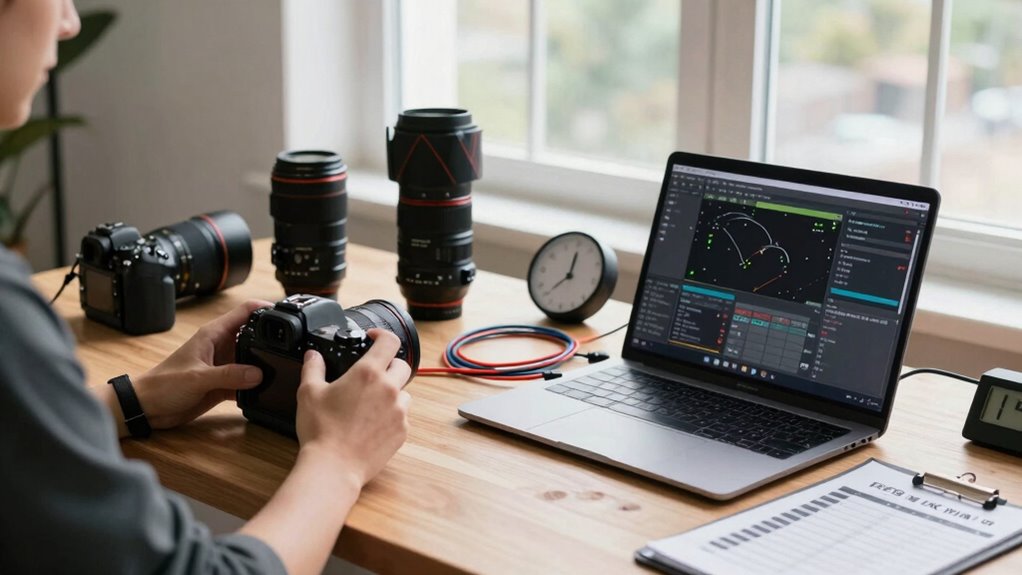
To sync multiple cameras quickly and avoid rookie mistakes, start by setting all cameras to the same resolution, frame rate, and shutter speed. Use a clear audio cue, like a clapperboard or loud snap, at the start of each take to create a reliable sync point. Import your footage, align clips based on the audio spikes, and zoom into waveforms for precise adjustments. Following these steps helps you achieve seamless syncs—exploring more tips will make your process even smoother.

Get sports gear delivered free with Prime
- Fast, free delivery on millions of items
- Prime Video, Amazon Music and more included
- Member-only deals all year
Key Takeaways
- Use a consistent camera setup with matching resolution, frame rate, and shutter speed from the start.
- Record a clear audio cue, like a clapperboard or loud snap, at the beginning of each take.
- Import footage with audio tracks intact and align clips based on the audio spike or cue.
- Utilize waveform zooming for precise manual adjustments after automatic syncing.
- Verify synchronization visually and audibly before finalizing to avoid common mistakes.
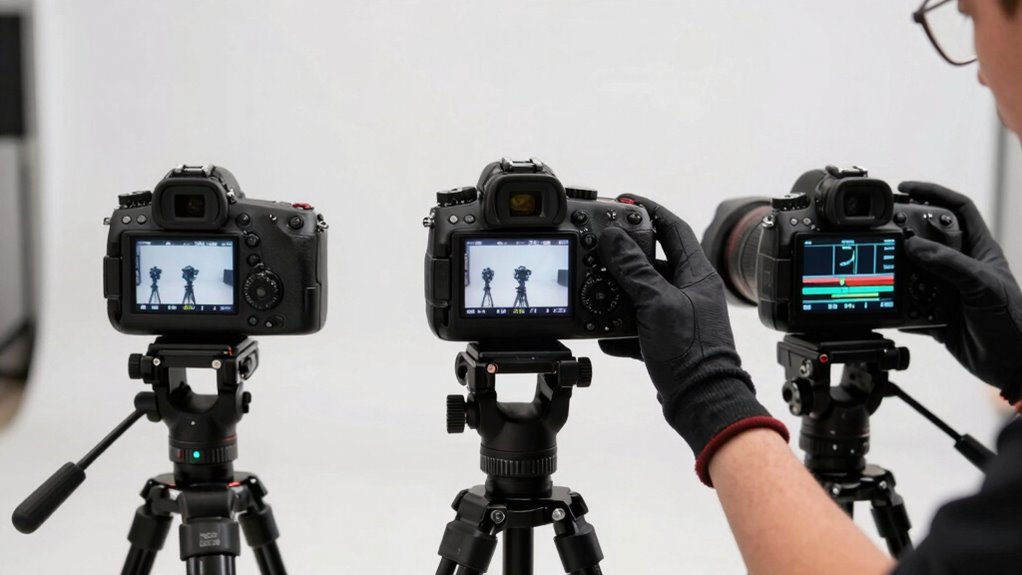
Syncing multiple cameras can seem intimidating, but with the right approach, you can do it quickly and avoid common rookie mistakes. The first step is understanding that consistency in camera settings is crucial. Before you start shooting, set all your cameras to similar parameters—resolution, frame rate, and shutter speed. If one camera records at 24 fps while another is at 30 fps, syncing becomes more complicated. Matching these settings ensures smoother alignment during post-production. Also, ensure each camera’s audio input is disabled or set to a neutral level if you’re using external audio sources. Relying solely on audio for synchronization is usually the most reliable method, especially if audio quality varies across cameras. Additionally, keeping track of your camera settings and recording environment can help troubleshoot issues later on. Audio synchronization is your best friend when syncing multiple cameras. Using a clapperboard or snapping your fingers loudly at the start of each take creates an unmistakable audio cue that’s easy to identify later. When you import your footage into editing software, look for that sharp audio spike and line it up across all tracks. This initial sync point is the foundation for aligning your clips accurately. Keep in mind that some editing programs offer automatic audio syncing; however, manual syncing using a clear audio cue is often more precise, especially if audio quality varies across cameras. Additionally, understanding frame rate consistency across your footage helps prevent playback issues, ensuring your final video is smooth and professional. Properly managing your camera settings from the start can save a lot of time during editing. Incorporating a standardized workflow can further enhance synchronization accuracy and efficiency. To further streamline your workflow, consider creating a sync checklist that includes confirming camera parameters, recording a sync clap, and verifying audio cues before shooting. Having a clear understanding of audio cues can significantly improve your synchronization process and reduce the chances of errors. Once you’ve synced based on audio cues, fine-tune the alignment by zooming into the waveform in your editing software. Slight adjustments can make a noticeable difference in synchronization accuracy. If you’re working on a tight schedule, creating a simple checklist—confirming camera settings, recording a sync clap, and using audio cues—can streamline the entire process. With these steps, you’ll avoid rookie mistakes, save editing time, and produce a cohesive, professional-looking multi-camera project.
clapperboard for video recording
As an affiliate, we earn on qualifying purchases.
As an affiliate, we earn on qualifying purchases.
Frequently Asked Questions
What Are the Best Software Options for Multi-Camera Syncing?
You should consider software like Adobe Premiere Pro, Final Cut Pro, or DaVinci Resolve for multi-camera syncing. These tools offer robust features for camera calibration and automatically align clips by matching audio, timecodes, or visual cues, which helps minimize lens distortion issues. Using such software guarantees your footage syncs seamlessly, saving you time and avoiding rookie mistakes, especially when managing multiple camera angles.
How Do I Synchronize Cameras in Low-Light Conditions?
Like a detective solving a mystery, you tackle low-light conditions by focusing on lighting challenges first. Use manual adjustments to boost exposure and gain, ensuring your cameras capture clearer footage. Rely on visual cues like waveform monitors or zebras to fine-tune settings. Keep your cameras steady and shoot in RAW if possible, so you can make precise corrections in post-production, turning dim scenes into sharp, synchronized shots.
Can I Sync Cameras With Different Frame Rates?
Yes, you can sync cameras with different frame rates, but it requires attention to frame rate compatibility and sync delay. First, choose a common frame rate or convert footage to match. Use a timecode or audio sync method to minimize sync delay. Adjust settings in your editing software to align clips accurately. Keep in mind, differences in frame rates may affect playback quality, so plan accordingly for seamless synchronization.
What Are Common Hardware Issues During Multi-Camera Shoots?
During multi-camera shoots, hardware issues like misaligned camera calibration and lens incompatibility often cause problems. You might notice color inconsistencies or focus issues if your cameras aren’t properly calibrated or if lenses aren’t compatible. To avoid this, make sure all cameras are calibrated correctly and use compatible lenses. Regularly check connections and firmware updates, and test your gear beforehand to prevent these common hardware glitches from disrupting your shoot.
How Do I Manage Audio Syncing Across Multiple Cameras?
To manage audio syncing across multiple cameras, start by monitoring for audio delay and guarantee consistent microphone placement. Use a clapperboard or a sharp clap at the beginning of each take to create a visual and audio sync point, making post-production easier. Double-check audio levels on each camera, and consider recording a dedicated scratch track for precise syncing. This approach minimizes discrepancies and streamlines your editing process.
As an affiliate, we earn on qualifying purchases.
Conclusion
Syncing multiple cameras doesn’t have to be a headache—just follow these tips to avoid rookie mistakes and save time. With a little practice, you’ll be seamlessly coordinating shots like a pro. Did you know that, on average, filmmakers spend up to 40% of their editing time fixing sync issues? Imagine cutting that down considerably. Mastering quick camera syncs means more focus on your creative vision and less on technical frustrations.
As an affiliate, we earn on qualifying purchases.
As an affiliate, we earn on qualifying purchases.
NFL season / tailgating Picks
team gear
As an affiliate, we earn on qualifying purchases.