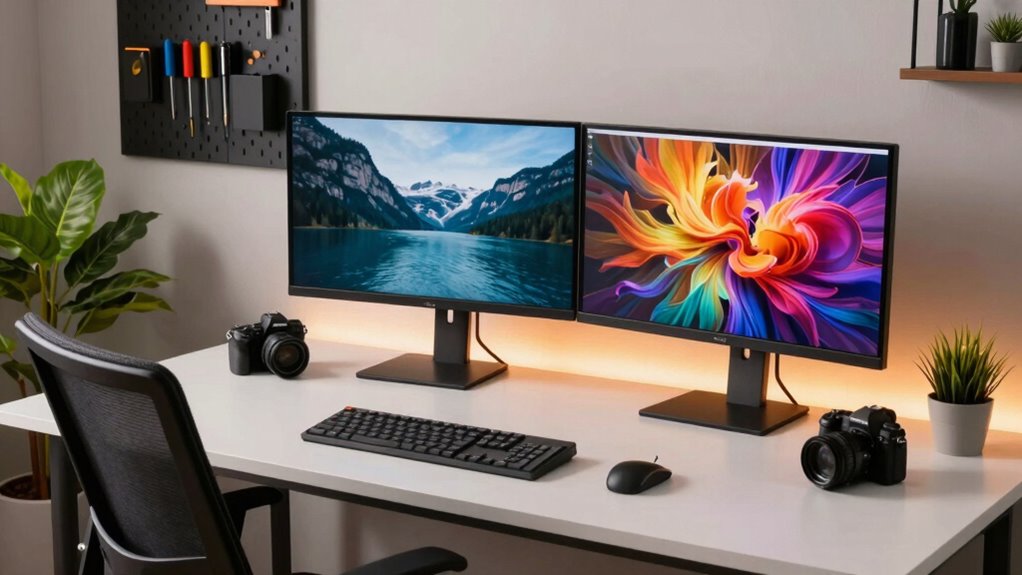

To build the right setup for photo and video editing, start by calibrating your monitors for accurate color representation. Position your screens at eye level to reduce strain and maintain an arm’s length distance to protect your vision. Use adjustable stands for ideal monitor height and arrange multiple displays to minimize head movement. Proper lighting is essential—keep glare at bay with soft, diffused light. With cable management and regular breaks, you’ll boost comfort and productivity. Discover more tips to enhance your workspace.

Get sports gear delivered free with Prime
- Fast, free delivery on millions of items
- Prime Video, Amazon Music and more included
- Member-only deals all year
Key Takeaways
- Calibrate your monitors regularly using tools or software to ensure color accuracy for consistent editing outcomes.
- Position monitors at eye level and use adjustable stands to reduce neck and back strain.
- Maintain an arm’s length distance from the monitor to prevent eye fatigue and enhance focus during editing sessions.
- Optimize lighting by positioning monitors away from glare and using soft, diffused lighting to reduce eye strain.
- Organize cables and take regular breaks to maintain a clean workspace and improve overall well-being during long editing sessions.
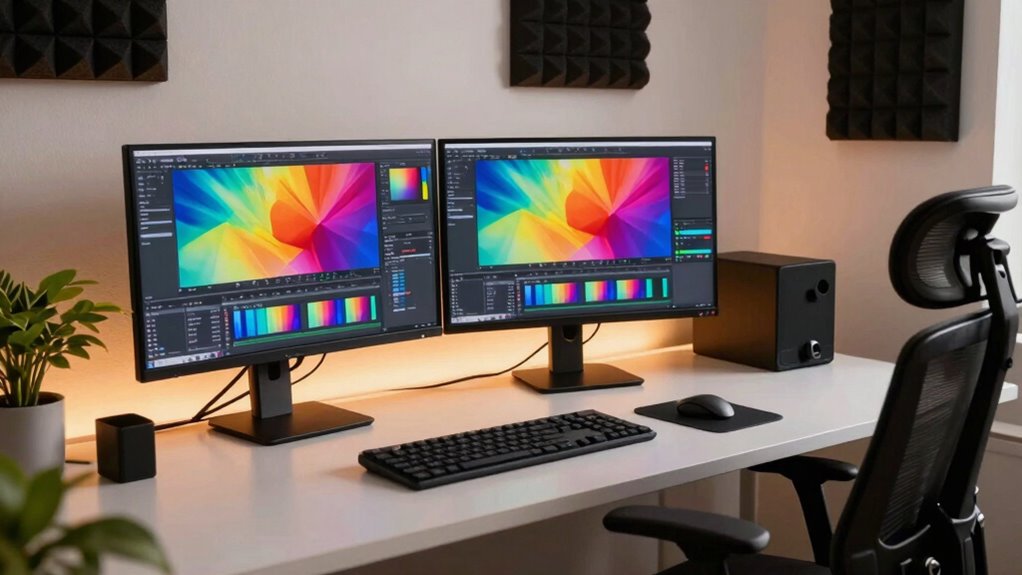
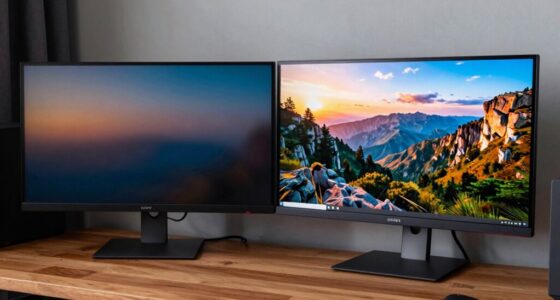
Building a solid setup for photo and video editing can considerably elevate your creative workflow. One of the key components of that setup is your monitor. It’s not just about having a high-resolution screen; proper monitor calibration and ergonomic considerations can make a world of difference. You want colors to pop and reflect the true essence of your work, so start with monitor calibration tips. Use calibration tools or software to adjust brightness, contrast, and color accuracy. Regular calibration guarantees that what you see on the screen matches the final output, whether it’s for print or digital media. Additionally, investing in a calibration device can simplify this process and ensure consistent results over time.
A well-calibrated monitor is essential for photo and video editing, ensuring colors reflect the true essence of your work.
Next, think about your workspace layout. You should position your monitors at eye level to reduce strain on your neck and back. An adjustable stand can be a game-changer here, letting you find the perfect height. If you’re using multiple monitors, arrange them in a way that minimizes head movement. Keeping the primary screen directly in front of you and the secondary screen slightly angled can help reduce discomfort during long editing sessions. Remember, comfort matters. You’ll spend hours at your desk, so invest in an ergonomic chair that supports your posture. Incorporating ergonomic accessories like wrist rests or monitor arms can further enhance comfort and reduce fatigue during extended editing periods.
Consider the distance between your eyes and the monitor as well. Ideally, you want the screen to be about an arm’s length away. This distance helps prevent fatigue and keeps your vision sharp. If you’re leaning in too close or squinting, it’s time to reassess your monitor placement. Proper lighting also plays a vital role in your setup. Avoid glare by positioning your monitors away from windows or direct light sources. Soft, diffused lighting around your workspace can enhance focus and reduce eye strain, enhancing your overall editing experience. Incorporating Proper lighting techniques can further optimize your workspace and protect your vision.
Cable management shouldn’t be overlooked either. Tidy up those cables to keep your workspace clean and organized. Not only does this improve aesthetics, but it also makes it easier to move around your setup. Use cable clips or sleeves to keep everything in place. To further improve your setup, consider monitor calibration to ensure your colors are precise and consistent across different projects. Also, adjusting your monitor’s brightness and contrast settings can significantly impact your ability to distinguish details in your work. Finally, take breaks! No matter how perfect your setup is, your body needs time to recharge. Stand up, stretch, and give your eyes a break from the screen. A well-designed workspace, coupled with monitor calibration tips and ergonomic considerations, can transform your editing sessions into a more enjoyable and productive experience.
As an affiliate, we earn on qualifying purchases.
Frequently Asked Questions
What Type of Room Lighting Is Best for Editing?
For editing, you want soft ambient light that minimizes monitor glare and room reflections. Aim for a color temperature around 5000K to 6500K, as it closely resembles daylight. Position lights behind your monitors and use adjustable blinds to control natural light, reducing harsh shadows. This setup creates a balanced environment, allowing you to focus on your work without distractions, ensuring accurate color representation and comfortable viewing conditions.
How Do I Calibrate My Monitors for Accurate Colors?
To calibrate your monitors for accurate colors, think of it like tuning a musical instrument. Start by using a color calibration tool to create monitor profiles that guarantee harmony in your visuals. Adjust brightness, contrast, and color settings according to the calibration software’s guidance. Regularly check and recalibrate to maintain consistency. This way, your images will resonate with true colors, making your editing process more precise and enjoyable.
What Is the Ideal Monitor Height for Editing?
The ideal monitor height for editing is at eye level, so you’re looking straight ahead rather than up or down. This position reduces neck strain and helps maintain focus. Make sure your monitors are about an arm’s length away to minimize screen glare and enhance visibility. Adjust the tilt as necessary to avoid reflections from windows or lights, ensuring your workspace is comfortable and conducive to precise editing.
Should I Use a Dual Monitor Setup or Ultrawide?
Whether you choose a dual monitor setup or an ultrawide, it’s like deciding between a toolbox and a Swiss Army knife. Dual monitors offer benefits like expanded workspace and multitasking efficiency, letting you compare projects side by side. On the other hand, ultrawide monitors provide seamless panoramic views, perfect for immersive editing. If you love versatility, go dual; if you crave simplicity and space, the ultrawide’s advantages might just win you over.
What Ergonomic Accessories Enhance Comfort During Long Editing Sessions?
To enhance comfort during long editing sessions, consider using wrist support to reduce strain while typing. Make sure your chair adjustment keeps your back aligned and your feet flat on the floor. A footrest placement can help maintain proper posture. Also, position your monitors to minimize screen glare, ensuring you can focus without distractions. These ergonomic accessories will greatly improve your comfort, allowing you to edit for longer without discomfort.
As an affiliate, we earn on qualifying purchases.
Conclusion
Creating the perfect setup for photo and video editing can transform your workflow and elevate your creativity. With the right monitors, lighting, and ergonomics, you can truly immerse yourself in your projects. Isn’t it time you invested in a space that fuels your passion and inspires your artistry? By thoughtfully arranging your environment, you’ll not only enhance your editing experience but also bring your vision to life with clarity and precision.
As an affiliate, we earn on qualifying purchases.
As an affiliate, we earn on qualifying purchases.
Halloween Picks
halloween
As an affiliate, we earn on qualifying purchases.