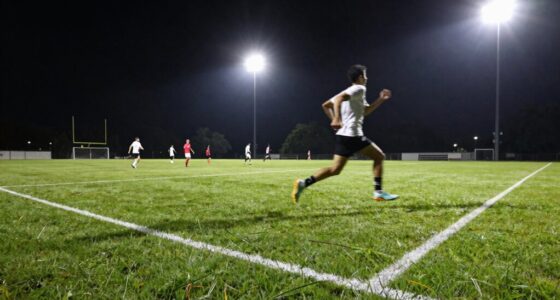
To recover highlights quickly in action photos, use targeted local adjustment tools like masks or brushes to reduce brightness only in blown-out areas. Keep your edits subtle to avoid unnatural looks and use preset filters or batch processing for faster workflow. Apply noise reduction selectively to maintain clarity, especially in shadowed areas. Mastering these rapid techniques helps you get the most detail without sacrificing speed—stay tuned for more tips to streamline your editing process.
Key Takeaways
- Use local adjustment tools like masks or brushes to target and recover highlights quickly.
- Apply preset filters or batch processing to speed up highlight recovery across multiple images.
- Keep edits subtle to avoid artifacts, focusing on balancing highlight recovery with noise reduction.
- Prioritize quick color grading before noise reduction to restore details efficiently.
- Develop and practice go-to adjustment presets for common lighting situations to save editing time.

Have you ever struggled to bring out the details in the brightest parts of your action photos? When speed is of the essence, you need quick, effective techniques to recover those highlights without compromising the overall shot. One of the first steps is understanding how to use color grading to your advantage. Color grading allows you to selectively adjust the brightness and contrast of specific areas in your image, especially the highlights. Instead of overexposing your entire photo, focus on reducing the brightness of the blown-out areas, which helps reveal details that might be lost in the brightest parts. Most editing software offers local adjustment tools, like masks or brushes, that let you target just the highlights, making the process faster when you’re pressed for time. Additionally, understanding highlight recovery techniques can significantly improve your workflow efficiency in these situations. Noise reduction plays a critical role here too. When you recover highlights, especially in high-ISO shots or underexposed images, noise can become a problem, making your details appear grainy or distracting. Applying noise reduction selectively to the highlighted zones can help smooth out these imperfections, bringing clarity back to the image. Be careful not to overdo it, though, because excessive noise reduction can cause your photo to look plasticky or unnatural. The key is finding a balance that preserves the sharpness of your subject while still cleaning up unwanted grain. Speed matters, so adopting a streamlined workflow is essential. Use preset filters or batch processing features if your editing software supports them, which can save precious minutes. Keep your adjustments subtle; overly aggressive edits can introduce artifacts or make your photo look unnatural. Remember, the goal is to subtly bring out the hidden details in the bright areas without sacrificing the overall integrity of the shot. When working with fast-paced action shots, prioritize quick color grading adjustments that target highlights first, then follow with noise reduction if necessary. In the heat of the moment, you won’t have time for detailed pixel-by-pixel edits, so developing a set of go-to adjustments for highlight recovery will make your workflow more efficient. Additionally, mastering workflow efficiency techniques can help you save time and improve your overall editing speed. Incorporating software shortcuts and customizable presets further enhances your ability to quickly respond to different lighting conditions. Being familiar with these tools and techniques can also help in quickly adapting to unexpected lighting challenges during shoots. By mastering the combined use of color grading and noise reduction, you’ll be able to recover highlights swiftly and effectively, ensuring your action photos capture all the dynamic details you want to showcase—even when speed is critical.
![Corel AfterShot Pro 3 | RAW Photo Editing Software [PC/Mac Key Card]](https://m.media-amazon.com/images/I/51cHkSe5ByL._SL500_.jpg)
Corel AfterShot Pro 3 | RAW Photo Editing Software [PC/Mac Key Card]
- Non-destructive editing: Edit RAW photos without quality loss
- Easy photo management: View, store, and organize photos effortlessly
- Batch processing: Edit multiple photos quickly with presets
As an affiliate, we earn on qualifying purchases.
As an affiliate, we earn on qualifying purchases.
Frequently Asked Questions
Can Recovery Tools Fix All Overexposed Highlights?
Recovery tools can fix many overexposed highlights, but they don’t always work perfectly. You might recover some details through color grading and noise reduction, but severely blown-out areas often lack detail and can’t be fully restored. To get the best results, shoot with proper exposure settings from the start. When highlights are overexposed, these tools help, but they aren’t a magic fix for all highlight loss.
What Camera Settings Help Prevent Highlight Loss?
Think of your camera as a guardian of light, carefully balancing exposure to protect bright highlights. To prevent highlight loss, you should use exposure control settings like lowering ISO, using a smaller aperture, or adjusting shutter speed. Enable highlight preservation features like highlight warning or auto HDR if available. These settings help you manage bright areas proactively, ensuring you capture vivid scenes without losing detail in the highlights.
Do Editing Apps Automatically Recover Highlights?
Most editing apps don’t automatically recover highlights, but they do offer tools for manual recovery. You can use color grading and RAW processing features to enhance details in bright areas. RAW files retain more highlight data, making recovery easier. By adjusting exposure, highlights, and shadows, you can bring back detail in blown-out regions. So, while automation is limited, your editing app provides powerful options for recovering highlights through manual adjustments.
How Long Does the Highlight Recovery Process Take?
The highlight recovery process can take just seconds or stretch into minutes, depending on your editing speed and software. With quick exposure adjustments, you’ll see the details in your highlights preserved almost instantly, making your action shots pop with clarity. However, if your image is severely overexposed, it might need a bit more time to fine-tune the highlights. Overall, it’s a rapid process that keeps your momentum going.
Is Highlight Recovery Possible in JPEG Files?
Yes, highlight recovery is possible in JPEG files, but it can be limited compared to RAW images. You can enhance details through color grading adjustments and noise reduction tools in photo editing software. Focus on carefully balancing exposure and contrast to recover highlights without introducing unwanted noise. Keep in mind, JPEGs have less data, so recovery might not be as extensive, but with skillful editing, you can improve your action photos considerably.
Corel AfterShot Pro 3 | RAW Photo Editing Software [PC/Mac Key Card]
- Non-destructive editing: Edit RAW photos without quality loss
- Easy photo management: View, store, and organize photos effortlessly
- Batch processing: Edit multiple photos quickly with presets
As an affiliate, we earn on qualifying purchases.
As an affiliate, we earn on qualifying purchases.
Conclusion
Remember, recovering highlights in action photos is like tuning a finely crafted instrument—you want each note to resonate perfectly. When speed matters, quick adjustments can save your shot from being lost in the shadows or blown-out highlights. With practice, you’ll learn to strike the right balance, turning chaotic moments into vivid memories. So keep experimenting and refining your technique; soon, you’ll be capturing action shots that shine as brightly as the moment itself.

CyberLink PhotoDirector 2026 | AI Photo Editing Software for Windows | Generative AI, Photo Retouching, Layer Editing, Effects & Design Tools | Box with Download Code
- AI Object Removal: Automatically removes distractions from photos
- AI Image Enhancer: Sharpens and retouches faces for clearer images
- Wire Removal: Erases power lines for cleaner outdoor photos
As an affiliate, we earn on qualifying purchases.
As an affiliate, we earn on qualifying purchases.

6 Pcs Mic Wind Muff for Mini Action Cameras. Premium Noise Reduction Sponge, Thumb Camera Windshield Cover to Upgrade Outdoor Vlog Recording
- Crystal Clear Sound: Effective noise reduction for clear audio
- Discreet Profile: Invisible design preserves shot quality
- Exact Compatibility: Fits popular action cameras perfectly
As an affiliate, we earn on qualifying purchases.
As an affiliate, we earn on qualifying purchases.