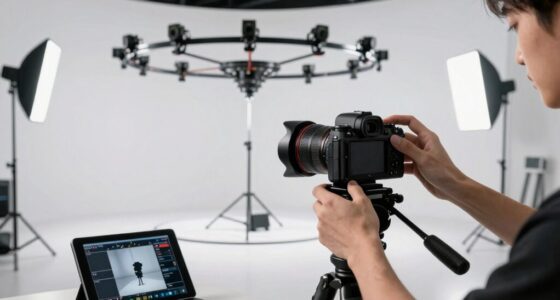
When stabilization looks unnatural, it’s a bigger issue than many creators realize because it can make your footage feel stiff, fake, and disconnected. Over-smoothing or excessive cropping can draw attention away from the story and create a disorienting experience for viewers. To keep your videos authentic, it’s essential to balance stabilization with natural motion and subtle camera movement. If you want to avoid these pitfalls, keep exploring how to preserve realism without sacrificing smoothness.

Get sports gear delivered free with Prime
- Fast, free delivery on millions of items
- Prime Video, Amazon Music and more included
- Member-only deals all year
Key Takeaways
- Over-stabilization can cause unnatural warping, cropping, or jitter that distracts viewers from the content.
- Excessive smoothing removes authentic camera movement, making footage feel stiff and disconnected.
- Overly stabilized footage may induce dizziness or discomfort in viewers due to unnatural motion.
- Ignoring scene context and intentionally removing subtle motion can strip footage of its realism.
- Achieving a natural look requires balancing stabilization with preserving original camera dynamics.

When you stabilize footage, it’s easy to assume that a smooth, jitter-free video is always desirable. But the truth is, overly aggressive stabilization can sometimes make your footage look unnatural, drawing attention away from the story you want to tell. Camera shake, when left uncorrected, can add a sense of realism and energy, especially in dynamic scenes. Over-stabilizing, however, can strip that authenticity, leaving viewers feeling disconnected or even dizzy. That’s why understanding how to balance stabilization with the natural feel of your footage is essential.
Over-stabilization can make footage look unnatural, distracting from the story and reducing authenticity.
Using different editing techniques can help you avoid the pitfall of unnatural stabilization. Instead of relying solely on automatic stabilization tools, you can fine-tune parameters like smoothness or cropping to maintain a natural motion. For example, applying a gentle amount of stabilization preserves the subtle camera shake that gives your footage its organic look. If you push stabilization too far, the software might crop or warp your image to eliminate every jitter, resulting in a stiff, unnerving video. It’s a delicate balance—too little stabilization leaves distracting shake, but too much can make your footage look robotic. Recognizing natural motion and maintaining it during editing is crucial for authentic results.
Another technique involves intentionally introducing slight camera shake during editing to enhance realism. Sometimes, adding a touch of subtle jitter or simulated handheld movement can make your video feel more authentic, especially if you’re aiming for a documentary or cinematic style. Conversely, if your scene is meant to be smooth and polished, you’ll want to carefully analyze the stabilized footage to make certain it doesn’t look overly processed. Watching your clips frame by frame can reveal moments where stabilization has gone too far, causing unnatural warping or jitter-free perfection that feels fake. Additionally, understanding the importance of context can help guide your stabilization choices to match the scene’s intent.
It’s also helpful to think about the context of your footage. For action-packed scenes, a bit of camera shake can add excitement, but excessive stabilization that smooths out every bit of movement robs the scene of its energy. Conversely, in professional interviews or product shots, a steady shot is essential, but over-stabilization can make the video seem sterile. The key is to experiment with different settings and editing techniques, always keeping your audience’s perception in mind.
Ultimately, the goal isn’t to eliminate all camera shake but to enhance your footage without sacrificing its natural character. When you learn to balance stabilization with the authentic motion captured during filming, your videos will feel more engaging and believable. Recognizing when stabilization looks unnatural is as important as the stabilization itself. By applying the right editing techniques thoughtfully, you protect the integrity of your footage and deliver a viewer experience that’s both smooth and genuine.
Frequently Asked Questions
How Can I Identify Unnatural Stabilization in Videos?
You can identify unnatural stabilization by watching for signs like excessive motion smoothing, which creates a soap-opera effect, or parallax shifting, where backgrounds shift unnaturally relative to foreground objects. These artifacts often indicate over-processed stabilization. If the video looks unnaturally smooth or if objects seem to jump or slide oddly during camera movements, you’re likely seeing signs of unnatural stabilization.
What Are the Best Tools for Natural Stabilization?
You should try tools like Adobe Premiere Pro’s Warp Stabilizer or Final Cut Pro’s stabilization features for natural results. These tools effectively reduce camera shake without over-smoothing, preventing that fake, overly smooth look caused by excessive motion smoothing. Look for options that allow you to customize stabilization strength, ensuring your footage remains authentic and steady without appearing unnaturally stabilized. Always preview your results to maintain the natural feel of your video.
Does Stabilization Affect Video Resolution or Quality?
You might be surprised to learn that stabilization can impact video quality, especially if it introduces camera shake or image distortion. It often slightly reduces resolution because cropping or warping is involved to smooth out motion. However, modern stabilization tools minimize these effects, so your footage remains sharp and clear. Just be aware that aggressive stabilization might compromise detail, so find a balance to keep your videos natural and high-quality.
How Do Different Stabilization Techniques Impact Editing Workflows?
Different stabilization techniques, like optical or digital stabilization, directly impact your editing workflow by requiring you to address camera shake and motion smoothing. You might spend extra time cropping or adjusting clips to fix unnatural movements, especially if stabilization introduces artifacts or reduces frame quality. Knowing how each method affects motion smoothing helps you plan your edits better, ensuring your footage looks smooth without sacrificing too much resolution or natural movement.
Can Stabilization Be Intentionally Used for Artistic Effect?
Yes, you can intentionally use stabilization for artistic effect. Instead of aiming for perfect smoothness, you might embrace creative distortions or surreal effects, adding a dreamlike quality to your footage. This approach can evoke emotion or create a unique atmosphere, making your work stand out. By deliberately manipulating stabilization, you turn an ordinary technique into a powerful tool for storytelling and visual experimentation.
Conclusion
So, next time you stabilize, remember—your viewers aren’t just watching, they’re feeling. If your footage jitters or feels too perfect, it pulls them out of the moment, like a painted smile hiding a restless mind. Think of stabilization as a delicate dance, where too much or too little can break the rhythm. Aim for that perfect balance, and your viewers will stay immersed, trusting your story more than your shaky camera ever could.
Halloween Picks
halloween
As an affiliate, we earn on qualifying purchases.